Tampilkan postingan dengan label Tutorial Linux. Tampilkan semua postingan

0
Membuat Komputer Jadi Router di Ubuntu

Jika Anda memiliki dua kartu jaringan atau beberapa cara lain untuk menghubungkan ke internet dan kartu jaringan di komputer ubuntu Anda, dapat menjadi router yang sangat kuat Anda dapat mengatur dasar NAT, melakukan port forwarding, mengatur proxy,. Dan bahkan melakukan prioritas paket sehingga download Anda jangan mengganggu game! Bagaimana ini akan mencakup pengaturan Webmin yang akan digunakan untuk mengkonfigurasi masquerading, DHCP, dan server DNS ini juga memungkinkan Anda mengkonfigurasi port forwarding.. QoS (prioritas paket) akan dibahas dalam kemudian guide ini dibuat menggunakan kubuntu untuk menunjukkan bahwa ia akan bekerja dengan versi ubuntu..


Webmin
Webmin adalah sebuah Aplikasi di komputer dengan manajemen berbasis mirip dengan aplikasi web yang Anda dapatkan dari router Anda membeli di toko,. Tetapi memungkinkan Anda untuk mengontrol sebagian besar komputer.
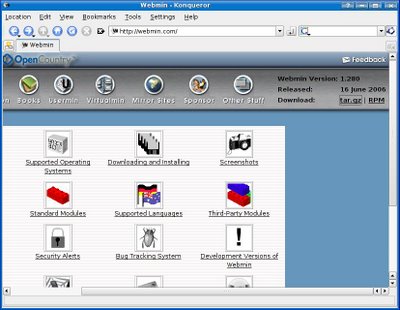
Untuk menginstal webmin, Anda harus terlebih dahulu pergi ke website di www.webmin.com dan download versi terbaru di sini ke folder pengguna Anda..

Setelah download selesai ekstrak ke sebuah folder misalnya \ usr \ webmin Aku diekstrak ke folder user saya dalam tutorial ini karena ini hanyalah sebuah live CD sehingga tidak terlalu penting.. Anda dapat menghapus file tar.gz setelah Anda ekstrak karena tidak lagi diperlukan.
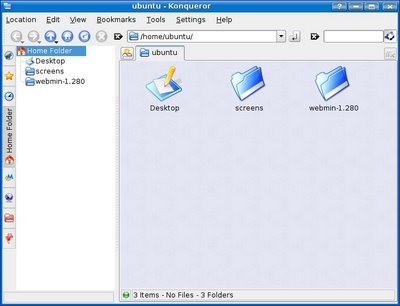


Sebelum Anda menginstal itu Anda akan ingin paket "libnet-SSLeay-perl". Jadi bukalah terminal dan jalankan "sudo apt-get install libnet-SSLeay-perl". Sekarang arahkan ke direktori folder (Bagi saya itu akan "cd / home/ubuntu/webmin-1.280") dan kemudian jalankan perintah "sudo sh setup.sh".

Config file directory [/etc/webmin]:
# Leave as default, or change as you wish

Log file directory [/var/webmin]:
# Leave as default, or change as you wish

Full path to perl (default /usr/bin/perl):
# Leave as default, or change as you wish

Web server port (default 10000):
# Leave as default or change it to what ever port you want.

Login name (default admin):
# Leave as default, or change as you wish

Login password:
# Choose a password, it will not display anything while you type

Password again:
# Self explanatory

Use SSL (y/n):
# Of course 'y'

Start Webmin at boot time (y/n):
# Once agian... 'y'

Ini tidak akan finlandia sampai instalasi dan Anda akan dapat login dengan menggunakan localhost: port atau routerip: port seperti http://localhost:10000
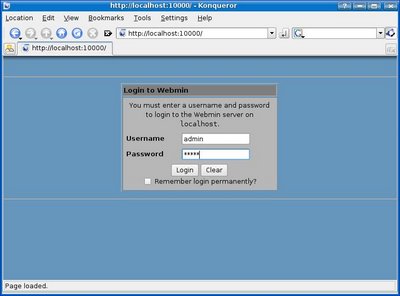

Masquerading
Masquerading juga dikenal sebagai NAT Untuk mengaktifkannya, login ke Webmin, pergi ke bagian jaringan, dan klik pada firewall ini akan meminta Anda untuk mengkonfigurasi sekarang Tekan "Apakah terjemahan alamat jaringan pada interface eksternal:"... Dan memilih eksternal antarmuka (salah satu yang terhubung ke internet) dan klik pada "Aktifkan firewall pada saat boot?" kemudian klik pada "firewall setup".
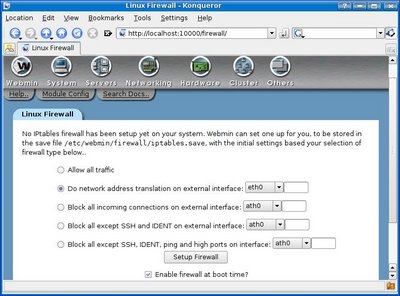

Sekarang Anda harus menambah aturan untuk firewall Anda untuk membolehkan lalu lintas yang datang dari jaringan internal, loopback, dan lalu lintas yang berkaitan dengan koneksi keluar (sehingga Anda dapat menerima respon terhadap permintaan Anda).

Untuk mengizinkan lalu lintas dari jaringan internal, di bawah "paket masuk (INPUT)" tekan menambahkan aturan. Berikan aturan komentar (nama) seperti jaringan internal dan tekan tombol oleh "Terima" dalam tulisan hijau. Lalu turun ke "antarmuka masuk "menempatkan sama dan menempatkan antarmuka internal Anda, dalam gambar di bawah ini adalah eth0 Gulir ke bawah dan. tekan menciptakan.
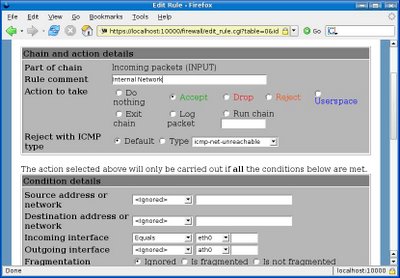

Sekarang lakukan hal yang sama tetapi menempatkan lo sebagai antarmuka yang masuk.

Sekarang Anda harus membuat aturan lain untuk koneksi yang ada Masukan komentar dan tekan menerima.. Untuk membuat antarmuka yang masuk sama dan menempatkan antarmuka eksternal (eth1 untuk saya). Gulir ke bawah untuk "Amerika Connection" dan menempatkan keduanya sama dan pilih koneksi "yang ada (ESTABLISHED) "dan" Terkait ada (BERHUBUNGAN) tekan "dan menciptakan
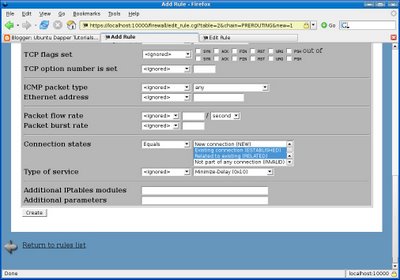

Sekarang Anda harus drop koneksi eksternal yang tidak memenuhi salah satu aturan lain, sehingga mengatur tindakan default dari "paket masuk (INPUT)" untuk drop dan tekan tombol.

Gulir ke bawah ke bawah dan tekan menerapkan konfigurasi.

Sekarang pergi ke bagian Sistem dan klik "Bootup and Shutdown". Klik "Buat boot baru dan tindakan mematikan" Buatlah nama "webmin-IPT" tanpa tanda kutip, membuat deskripsi apa pun yang Anda tolong, dan untuk perintah boot, menempatkan ". / bin / echo 1> / proc/sys/net/ipv4/ip_forward "dan membuat baris baru dan menempatkan" / sbin / iptables-restore / etc / webmin / firewall / iptables.save "kemudian tekan menciptakan. Cari perintah boot Anda hanya dibuat dalam daftar dan klik kemudian tekan Mulai Sekarang.

Configure DHCP
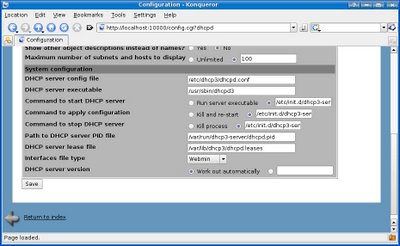
In webmin, go to servers and press DHCP Server and click Module Config.
Replace (without quotes)
DHCP server config file with "/etc/dhcp3/dhcpd.conf"
DHCP server executable with "/usr/sbin/dhcpd3"
Command to start DHCP server with "/etc/init.d/dhcp3-server start"
Command to apply configuration with "/etc/init.d/dhcp3-server restart"
Command to stop DHCP server with "/etc/init.d/dhcp3-server stop"
Path to DHCP server PID file with "/var/run/dhcp3-server/dhcpd.pid"
DHCP server lease file with "/var/lib/dhcp3/dhcpd.leases"
and press save.

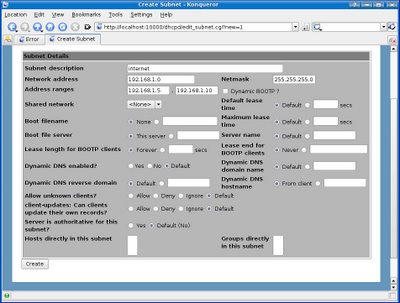
Sekarang tekan "Tambah subnet baru" dan menempatkan deskripsi dari subnet ini Untuk alamat jaringan,. Membuatnya sama sebagai alamat internal tetapi dengan 0 di akhir, misalnya NIC internal saya adalah 192.168.1.1 jadi saya akan menempatkan 192,168. 1,0 untuk alamat jaringan. rentang alamat menempatkan berbagai addrseses untuk server DHCP Anda untuk menetapkan. untuk netmask menempatkan subnet yang sama seperti Anda, kebanyakan 255.255.255.0 dan tekan menciptakan.

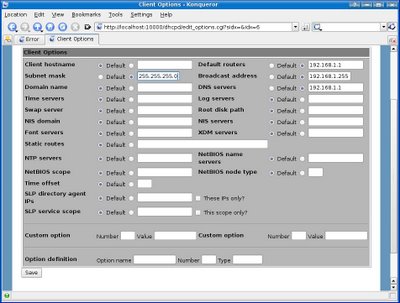
Setelah dibuat, klik ikon baru yang baru saja dibuat dengan alamat jaringan yang Anda pilih di bawah dan gulir ke bawah ke bawah dan klik "Edit Opsi Klien". Isi Subnet mask dengan, Anda router standar subnet dan dns server dengan IP internal Anda dan alamat broadcast dengan ip internal tetapi 255 di akhir (misalnya ip internal saya adalah 192.168.1.1 jadi saya akan menaruh 192.168.1.255 untuk disiarkan) dan tekan menyimpan kemudian tekan server yang memulai.

Komputer Anda sekarang akan menjadi server DHCP, router, dan server DNS. Untuk melakukan port forwarding, pergi ke pengaturan firewall webmin dan pergi ke Address Translation Jaringan (nat) iptable. Dari sana Anda dapat menambahkan aturan untuk Paket sebelum routing (PREROUTING).


8
Setting PC Router pada Ubuntu

PC Router adalah memfungsikan sebuah PC agar dapat melakukan proses routing dari Local Area Network (LAN) ke Global Connection atau biasa juga disebut internet, dimana tentunya fungsi ini dapat memberikan sebuah gateway bagi kebutuhan Local Area Network (LAN).

Berikut adalah syarat untuk memfungsikan PC agar menjadi sebuah router gateway :
# PC Pentium IV + RAM 512
# LAN Card 2 buah
# Operating System Ubuntu Server
# Koneksi internet
# Ip Address, disini saya menggunakan ip address sebagai berikut :
# Ip Address dari
>> ISP (eth0) : 202.173.129.25/29 dengan DNS1 : 202.173.1.10 dan DNS2 : 202.173.1.20
# Ip Address untuk LAN (eth1) : 192.168.1.1/24

Langkah awal adalah setting ip address di ubuntu server, langkahnya sebagai berikut :
root@server:~# vim /etc/network/interfaces

# ISP Connection
auto eth0
iface eth0 inet static
address 202.173.129.26
netmask 255.255.255.248
network 202.173.129.24
broadcast 202.173.129.30
gateway 202.173.129.25


# LAN Connection
auto eth1
iface eth1 inet static
address 192.168.1.1
netmask 255.255.255.0
network 192.168.1.0
broadcast 192.168.1.255

Ssimpan dengan mengetikkan esc:wq dan enter

Selanjutnya harus diubah settingan dns, sebagai berikut :

root@server:~# vim /etc/resolv.conf

nameserver 202.173.1.10
nameserver 202.173.1.20

simpan dengan mengetikkan esc:wq dan enter

Jika ip address sudah kita setting pada interface eth0 dan eth1, selanjutnya kita coba test ping ke yahoo.com atau alamat lainnya :

root@server:~# ping yahoo.com


PING yahoo.com (209.131.36.159) 56(84) bytes of data.
64 bytes from b1.www.vip.sp1.yahoo.com (209.131.36.159): icmp_seq=1 ttl=47 time=228 ms
64 bytes from b1.www.vip.sp1.yahoo.com (209.131.36.159): icmp_seq=2 ttl=47 time=224 ms
64 bytes from b1.www.vip.sp1.yahoo.com (209.131.36.159): icmp_seq=3 ttl=47 time=225 ms
64 bytes from b1.www.vip.sp1.yahoo.com (209.131.36.159): icmp_seq=4 ttl=47 time=231 ms

Jika hasil ping sudah seperti di atas, maka koneksi internet untuk server sudah ok. Selanjutnya lakukan perintah update dan upgrade untuk ubuntu :

root@server:~# apt-get update && apt-get upgrade


Kemudian agar user LAN dapat berinternet, silahkan lakukan perintah sebagai berikut :

root@server:~# vim /etc/sysctl.conf


pada perintah ini silahkan cari tulisan #net.ipv4.conf.default.forwarding = 1 dan hilangkan tanda pagarnya sehingga menjadi net.ipv4.conf.default.forwarding = 1

simpan dengan mengetikkan esc:wq dan enter

Jangan lupa kita juga harus melakukan perintah sebagai berikut :

root@server:~# echo “1″ /proc/sys/net/ipv4/ip_forward


Dengan langkah diatas maka user LAN sudah dapat berkomunikasi antar user LAN, tetapi belum bisa melakukan komunikasi dengan global internet. Berikut adalah langkah yang harus dilakukan agar user LAN dapat berkomunikasi dengan global internet :

root@server:~# /sbin/iptables -t nat -A POSTROUTING -s 192.168.1.0/255.255.255.0 -d 0/0 -j MASQUERADE


Selanjutnya agar fungsi routing dapat otomatis berjalan saat kita restart pc server, maka kita harus save perintah routing tersebut di file /etc/rc.local, langkahnya sebagai berikut :

root@server:~# vim /etc/rc.local


echo “1″ /proc/sys/net/ipv4/ip_forward
/sbin/iptables -t nat -A POSTROUTING -s 192.168.1.0/255.255.255.0 -d 0/0 -j MASQUERADE


OK selesai..., selamat mencoba dan semoga berhasil

5
Setting DNS di Ubuntu Linux

DNS atau Domain Name Server adalah penerjemah nama menjadi IP. www.rab.co.id adalah 203.130.231.120, itulah tugas DNS. Kita memerlukannya karena pada dasarnya data dikirim ke alamat IP, bukan nama domain. Saat Anda menggunakan layanan GPRS, program wvdial otomatis menentukan DNS sesuai arahan ISP, Internet Service Provider. Bila Anda punya warnet, Internet server dapat diset sebagai DNS. Ini memudahkan pengaturan DHCP server yang mengarahkan DNS bagi para pc client. Sehingga saat Anda beralih ke ISP lain, tidak perlu lagi mengubah setting DHCP.

Disini saya menggunakan Ubuntu 10.04 dan ini juga berlaku pada distro linux turunan Debian. Silakan ikuti cara berikut :

Buka Terminal Console, trus ketik:
$ sudo su
# apt-get install bind9


Lalu ubahlah /etc/bind/named.local.conf, hapus remark pada include-nya sehingga menjadi seperti ini:

// Consider adding the 1918 zones here, if they are not used in your
// organization
include "/etc/bind/zones.rfc1918";


Simpan, dan restart daemon-nya:

# /etc/init.d/bind9 restart


Untuk mencobanya ubahlah /etc/resolv.conf menjadi:

nameserver 127.0.0.1

Baris-baris nameserver lainnya di-remark saja. resolv.conf dikategorikan sebagai "client setting", mudah-mudahan Anda paham maksudnya. Kemudian ujilah dengan memanggil sebuah nama:

# telnet google.com 80


Trying 209.85.171.100...
Connected to google.com.
Escape character is '^]'.
^]

Log-nya bisa Anda lihat di /var/log/daemon.log. Sampai di sini DNS hanya dapat digunakan oleh server sendiri. Selanjutnya izinkan pc client menggunakannya dengan mengubah /etc/bind/named.conf.options. Tambahkanlah di atas options dengan:

acl semua {
0.0.0.0/0;
};


Lalu di-dalam options tambahkan:

allow-query { semua; };


Sehingga keseluruhan /etc/bind/named.conf.options menjadi seperti ini:

acl semua {
0.0.0.0/0;
};

options {
directory "/var/cache/bind";
auth-nxdomain no; # conform to RFC1035

allow-query { semua; };
}


Lanjutkan dengan restart daemon-nya:

# /etc/init.d/bind9
restart

Di PC client, ubahlah DNS ke 192.168.0.254 ( IP server ), lalu cobalah:

$ telnet google.com 80


Trying 209.85.171.100...
Connected to google.com.
Escape character is '^]'.
^]

IP Publik
Sekarang server ini memiliki IP publik, dimana ia dapat dihubungi dari luar (Internet). Cobalah pasang Apache:

# apt-get install apache2

Misalkan ISP memberikan IP publik 202.59.201.67 untuk server ini. Ujilah dari tempat lain, bukan dari server maupun dari LAN, misalnya menggunakan GPRS di laptop:

$ telnet 203.130.231.120 80

telnet 203.130.231.120 80
Trying 203.130.231.120...
Connected to 203.130.231.120.
Escape character is '^]'.

Baik, itu artinya IP publik sudah berfungsi dan Apache telah merespon dengan benar. Selanjutnya pesanlah sebuah domain ke register.net.id, katakanlah rab.co.id. Katakan pada mereka bahwa rab.co.id ada di 203.130.231.120 dengan hostname dns1.rab.co.id.

Setelah itu, lakukan setting di server. Buatlah /etc/bind/db.rab.co.id:

$TTL 1500
@ IN SOA dns1.rab.co.id. grananda.rab.co.id. (
2007062703 ;serial
28800 ;refresh
3600 ;retry
604800 ;expire
38400 ) ;minimum 25 minutes
@ IN NS dns1.rab.co.id.
@ IN A 202.59.201.67
dns1 IN A 202.59.201.67
www IN CNAME dns1


Tambahkan di /etc/bind/named.local.conf dengan ini:

zone "rab.co.id" {
type master;
file "/etc/bind/db.rab.co.id";
};


Kemudian restart daemon-nya:

# /etc/init.d/bind9 restart


Lalu cobalah dari server:

# telnet rab.co.id 80


Trying 203.130.231.120...
Connected to rab.co.id.
Escape character is '^]'.
^]

Coba juga dari ISP lain. Biasanya 3 hari setelah pendaftaran di register.net.id, domain Anda sudah dikenali oleh Internet.

Semoga Berhasil....

9
Install Ubuntu didalam Windows Melalui Wubi

Wubi adalah aplikasi didalam os ubuntu untuk menginstall Ubuntu didalam sistem operasi windows. Umumnya jika kita masukkan CD Installer Ubuntu kedalam Sistem operasi Windows yang aktif akan muncul secara otomatis/autorun.

Wubi juga mempermudah kita menginstal ke file di Windows tanpa melakukan booting untuk mempartisi linux. Pada saat instalasi ubuntu, Wubi dapat menggunakan file .iso dari Ubuntu Alternate CD, jadi tidak harus mengunduh dari internet. Jika Anda punya Alternate CD, Anda dapat mengubahnya menjadi file .iso, lalu menginstal ubuntu melalui Wubi dengan meletakkan file .iso itu di folder yang sama dengan file Wubi.exe. Jika tidak ada file .iso, maka Wubi akan mengunduh melalui internet.


Berikut langkah–langkah penginstallan Ubuntu menggunakan aplikasi Wubi langsung pada os windows:

Masukkan CD ubuntu Anda, secara otomatis akan diminta untuk memilih apakah anda ingin menginstall secara penuh atau menginstall di dalam Windows yang Anda gunakan saat ini pilih Option Install dalam Windows. Pilih "Install Inside Windows"


Kemudian Anda akan diminta untuk memilih partisi dimana anda akan menginstall Linux Ubuntu tersebut,memilih ukuran installasi, bahasa, nama pengguna dan password yang diinginkan. Setelah selesai mengisi klik pasang.


Installasi akan mengekstrak file dari CD ke folder partisi yang telah Anda pilih.Apabila installasi berjalan lancar Anda akan diminta untuk merestart komputer.Restart Komputer Anda dan pilih booting ke Ubuntu, setelah itu komputer akan melanjutkan installasinya seperti gambah di bawah ini.


Setelah Proses Instalasi diatas selesai, maka komputer akan diminta untuk restart kembali dan installasi ubuntu Anda telah selesai. Nah gampangkan..., tanpa susah payah anda sudah punya 2 os windows dan Ubuntu.

Semoga berhasil...!!!

2
How to Dual Monitors

Few weeks ago I became owner of new 22 inch monitor Samsung SyncMaster 225BW. I has plan to sell my old 19 inch HP1905, but today i decide to try dual monitor setup on my desktop PC. I’ve spent about 3 hours to get everything work and now I’m fully confident that two monitors are better than one.

There is a lot of guides and a few ways how-to configure multi monitor systems under Linux. Most of time i have try follow guides to get my system working, but reading documentation is always better ;-). Below you can find some tips about dual monitor setup. This post is not complete HOWTO, but maybe you can find some answers.


There is few ways to configure multi monitor systems and i have choose twinview, because that option is native feature of Nvidia drivers.Next you need comment out option Virtual under SubSection Display. That option respond for size of virtual desktop. Also you need add option “Viewport 0 0″ under same SubSection.

Both monitors connected to one video card GeForce 6600GT. SyncMaster connected with DVI and HP with VGA. System is Ubuntu 7.04 Beta, but all options will be valid on mostly all other systems.

First, as usual before any changes, you need backup current xorg.conf. Next open config in favourite editor, and add following lines under section Device:

Option "TwinView" "1"
Option "TwinViewXineramaInfoOrder" "DFP, CRT"
Option "UseDisplayDevice" "DFP, CRT"
Option "TwinViewOrientation" "DFP LeftOf CRT"
Option "NoPowerConnectorCheck"
Option "UseEdidFreqs" "1"
Option "Metamodes" "CRT-0: 1280x1024, DFP-0: 1680x1050"
Option "SecondMonitorHorizSync" "31-82"
Option "SecondMonitorVertRefresh" "56-76"

Here you can find complete description of used options. A lot of time spent to find how-to change order of displays (by default VGA display inits first). If that is OK for you, remove option TwinViewXineramaInfoOrder from config.


And a last change is under Section ServerLayout. Add following params:


Screen 0 "Default Screen" 0 0

Option "Xinerama" "Off"


Thats all. Save modified config, press Ctrl+Alt+Backspace to restart X server and enjoy your new desktop ;-) Feel free to ask any questions about configuration above. I will try to help you.


Here you can download my working xorg.conf


TwinView


Source : Zulu

0
Ubuntu Networking for Basic and Advanced Users

The basics for any network based on *nix hosts is the Transport Control Protocol/ Internet Protocol (TCP/IP) combination of three protocols. This combination consists of the Internet Protocol (IP),Transport Control Protocol (TCP), and Universal Datagram Protocol (UDP).

By Default most of the users configure their network card during the installation of Ubuntu. You can however, use the ifconfig command at the shell prompt or Ubuntu’s graphical network configuration tools, such as network-admin, to edit your system’s network device information or to add or remove network devices on your system

Configuring Network Using Graphical Configuration Tool in Ubuntu


If you are new to networking the graphical configuration tool is your best method for configuring new hardware in Ubuntu.We are going to use GUI tool “network-admin” to configure networking. Remember, you must be root to run network-admin.


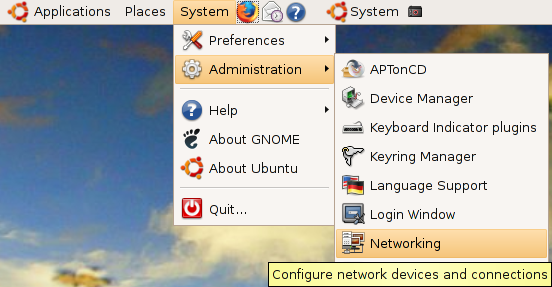
There are two ways to start network-admin first thing is you can use your terminal to type “sudo network-admin” it will start up or you can go to System—>Administration —>Networking


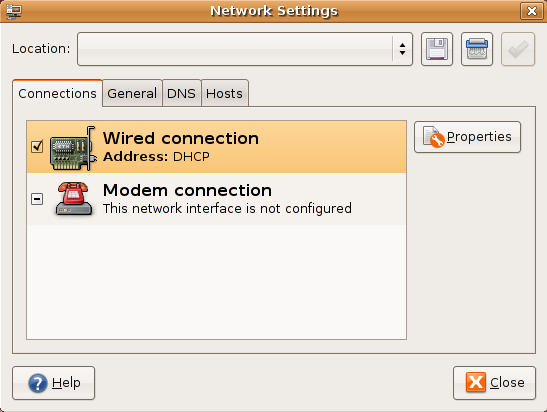
Once it opens you should see the following screen


In the above screen select wired connection and click on properties tab you should see the following screen my network card is curretly configured for DHCP client and you need to make sure “Enable this connection” tick box is checked


If you want to configure the Static ipaddress you need to select drop down box under “Configuration” select static ip address and you need to make sure “Enable this connection” tick box is checked


Once you select the static ip address you need to select ip address,subnet mask,gateway address and click on ok


Now you click on “General” tab here you can enter your hostname,domain name


Next one you need to click on “DNS” tab to configure your system’s DNS settings, hostname, or DNS search path.


Click the Hosts tab, and then either click the Add or Properties button (after selecting a host) to create or edit an entry in your system’s /etc/hosts file


Highlight an existing entry, and then click the Properties button to change /etc/hosts entries in the Hosts tab of the Network Configuration screen.


You can also assign different locations to your computer, especially very useful if you are on a laptop and move between several networks each requiring different configurations. Just select the gray bar at the top of the network-admin window and select Create Location. Enter a name, such as Home and then repeat this again to create another location, Work. Each time you switch between locations, Ubuntu detects that it needs to use configurations specific to those locations, so for instance you might want to use DHCP at work, but not at home. Simple; just select the Home location, configure your ethernet connection to use a Static IP and you are all set to switch between your home and corporate networks.


Configure Network Interface Using Command-Line

You can configure a network interface from the command line using the networking utilities. You configure your network client hosts with the command line by using commands to change your current settings or by editing a number of system files.

Configuring DHCP address for your network card

If you want to configure DHCP address you need to edit the /etc/network/interfaces and you need to enter the following lines replace eth0 with your network interface card

sudo vi /etc/network/interfaces

# The primary network interface – use DHCP to find our address
auto eth0
iface eth0 inet dhcp

Configuring Static IP address for your network card

If you want to configure Static IP address you need to edit the /etc/network/interfaces and you need to enter the following lines replace eth0 with your network interface card

sudo vi /etc/network/interfaces

# The primary network interface
auto eth0
iface eth0 inet static
address 192.168.3.90
gateway 192.168.3.1
netmask 255.255.255.0
network 192.168.3.0
broadcast 192.168.3.255

After entering all the details you need to restart networking services using the following command

sudo /etc/init.d/networking restart

Setting up Second IP address or Virtual IP address in Ubuntu

If you are a server system administrator or normal user some time you need to assign a second ipaddress to your Ubuntu machine.For this you need to edit the /etc/network/interfaces file and you need to add the following syntax.Below one is the only example you need to chnage according to your ip address settings

sudo vi /etc/network/interfaces

auto eth0:1
iface eth0:1 inet static
address 192.168.1.60
netmask 255.255.255.0
network x.x.x.x
broadcast x.x.x.x
gateway x.x.x.x

You need to enter all the details like address,netmask,network,broadcast and gateways values after entering all the values save this file and you need to restart networking services in debian using the following command to take effect of our new ipaddress.

After entering all the details you need to restart networking services using the following command

sudo /etc/init.d/networking restart

Setting your ubuntu stytem hostname

Setting up your hostname upon a ubuntu installation is very straightforward. You can directly query, or set, the hostname with the hostname command.

As an user you can see your current hostname with

sudo /bin/hostname

Example

To set the hostname directly you can become root and run

sudo /bin/hostname newname

When your system boots it will automatically read the hostname from the file /etc/hostname

If you want to know more about how to setup host name check here

Setting up DNS

When it comes to DNS setup Ubuntu doesn’t differ from other distributions. You can add hostname and IP addresses to the file /etc/hosts for static lookups.

To cause your machine to consult with a particular server for name lookups you simply add their addresses to /etc/resolv.conf.

For example a machine which should perform lookups from the DNS server at IP address 192.168.3.2 would have a resolv.conf file looking like this

sudo vi /etc/resolv.conf

enter the following details

search test.com
nameserver 192.168.3.2

Network Troubleshooting Tips

Networking is sometimes considered to be complex, and hard to troubleshoot and manage. However, Linux provides you with Some tools to figure out exactly what’s going wrong on your network, and how to fix it.Here we are going see some tools and how to check the network connectivity.

Ping

Ping is a computer network tool used to test whether a particular host is reachable across an IP network. Ping works by sending ICMP “echo request” packets to the target host and listening for ICMP “echo response” replies (sometimes dubbed “Pong!” as an analog from the Ping Pong table tennis sport.) Using interval timing and response rate, ping estimates the round-trip time (generally in milliseconds although the unit is often omitted) and packet loss (if any) rate between hosts.

This is very basic and powerful tool to check Internet connection

Example

ping -c 4 google.com

-c option is used to pass how many packets you’re sending

If everything working file you should get reply looks like below

Pinging www.l.google.com [64.233.183.103] with 32 bytes of data:

Reply from 64.233.183.103: bytes=32 time=12ms TTL=244

Ping statistics for 64.233.183.103:
Packets: Sent = 4, Received = 4, Lost = 0 (0% loss),
Approximate round trip times in milli-seconds:
Minimum = 12ms, Maximum = 12ms, Average = 12ms

Traceroute

traceroute is a computer network tool used to determine the route taken by packets across an IP network. An IPv6 variant, traceroute6, is also widely available.Very useful to trace IP packets.

Example

traceroute google.com

ifconfig

The Unix command ifconfig can function as a tool to configure a network interface for TCP/IP from the command line interface (CLI).This is another easy tool to see if your interface is actually loading correctly.

Example

ifconfig

eth0 Link encap:Ethernet HWaddr 00:0A:E6:C6:07:85
inet addr:132.18.0.16 Bcast:132.18.0.255 Mask:255.255.255.0
inet6 addr: fe80::20a:e6ff:fec6:785/64 Scope:Link
UP BROADCAST RUNNING MULTICAST MTU:1500 Metric:1
RX packets:18458 errors:0 dropped:0 overruns:0 frame:0
TX packets:8982 errors:0 dropped:0 overruns:0 carrier:0
collisions:0 txqueuelen:1000
RX bytes:4015093 (3.8 MiB) TX bytes:1449812 (1.3 MiB)
Interrupt:10 Base address:0xd400

Route

This is very useful to check routing config

Example

route -n

Netstat

If you want to see Routing Tables,all open ports,all listen ports

netstat -nr

-n means return numeric output (ie, IP address instead of hostname)

-r means print the routing table

find all open ports

netstat -a

find listening ports

netstat -l


Source: Debian Admin

8
Setting Modem Venus VT12 di Ubuntu

Salah satu pengalaman yang menarik adalah ketika membuat Dial-Up Modem CDMA menggunakan Modem VT12 dengan Kartu Flexi Unlimited.

Pada dasarnya settingan Modem CDMA di semua distro Linux sama, juga pada Ubuntu. Kelebihan yang paling terasa saat menyetting modem CDMA di Ubuntu adalah kita tidak memerlukan driver khusus, beda dengan di "Jendela" yang mengharuskan kita menginstall Driver bawaan Venus VT12.

Cara setting Dial Up Modem venus VT12 di Ubuntu sangatlah mudah, sekalipun bagi newbie.
langkahnya adalah :

1. Colokkan Modem ke Kompi dan pastikan Modem udah kedetek ama Ubuntu,

Untuk mengecek apakah Modem udah kedetek apa belum tinggal masuk di Terminal-nya Ubuntu kemudian ketik "dmesg". Klo dah ada tulisan "ttyUSB0" atau "ttyUSB1" atau "ttyUSB2", dst disalah satu baris dari hasil perintah "dmesg" tadi berarti modem dah sukses dikenali oleh Ubuntu. Ini berlaku bukan hanya untuk modem Venus, tetapi untuk modem-modem lainnya.


2. Salah satu alat untuk membuat Dial Up adalah "wvdial". Untuk menginstal Wvdial silahkan download disini. Kemudian hasil downloadan tadi di ekstrak kedalam sebuah folder, misalkan diekstrak di /home/Venus12


3.ketikkan perintah di terminal

caprone@ubuntu-dekstop:~$cd /home/Venus12

sudo dpkg -i *.deb


4.edit Konfigurasi Wvdial dengan mengetikkan perintah di terminal

gksudo gedit /etc/wvdial.conf

ganti perintah-perintah di dalam wvdial.conf dengan perintah di bawah ini


[Dialer Flexi]
Init1 = ATZ
Init2 = ATQ0 V1 E1 S0=0 &C1 &D2 +FCLASS=0
Modem Type = Analog Modem
Baud = 230400
New PPPD = yes
Modem = /dev/ttyUSB0
ISDN = 0
Phone = #777
Password = telkom
Username = xxxxxxxxx@free
FlowControl = CRTSCTS
Stupid Mode = 1
Compuserve = 0
Idle Seconds = 300


Simpan dan keluar

5.Untuk men-dial modem ketikkan perintah "sudo wvdial" (tanpa tanda kutip)
kalo dah ada tulisan

Primary IP Address : xxx.xxx.xxx.xxx
Secondary IP Address : xxx.xxx.xxx.xxx

di bagian akhir tulisan yang muncul, maka sambungan dah sukses. Lanjutkan dengan browsing.....

6.Untuk memutus sambungan tinggal tekan tombol "Ctrl+c"
Itulah beberapa langkah setting Wvdial menggunakan Modem VT12 di Ubuntu.

Semoga membantu......


setelah mendapatkan no IP
barulah anda bisa internetan. jika sudah tidak digunakan, anda bisa menghentikan software dengan Ctrl+c

Download WVDIAL disini


Ujie Caprone | © 2011 Blogger Template by Ujiecaprone.com